
Adding Media and Attachments to Your Messages on TeamSnap ONE
Team Chat makes it easy to share files and media with your team. Upload videos, documents, photos, and other attachments to keep everyone informed and organized. The steps below walk through how to add media and attachments to your conversations in TeamSnap ONE.
- After logging into your TeamSnap ONE mobile app, Click the Messages tab
- From the main Conversations screen, click on the specific Team Chat, Direct Message, or Group Conversation where you want to send your message
- At the bottom of the screen, click on the + Sign Symbol
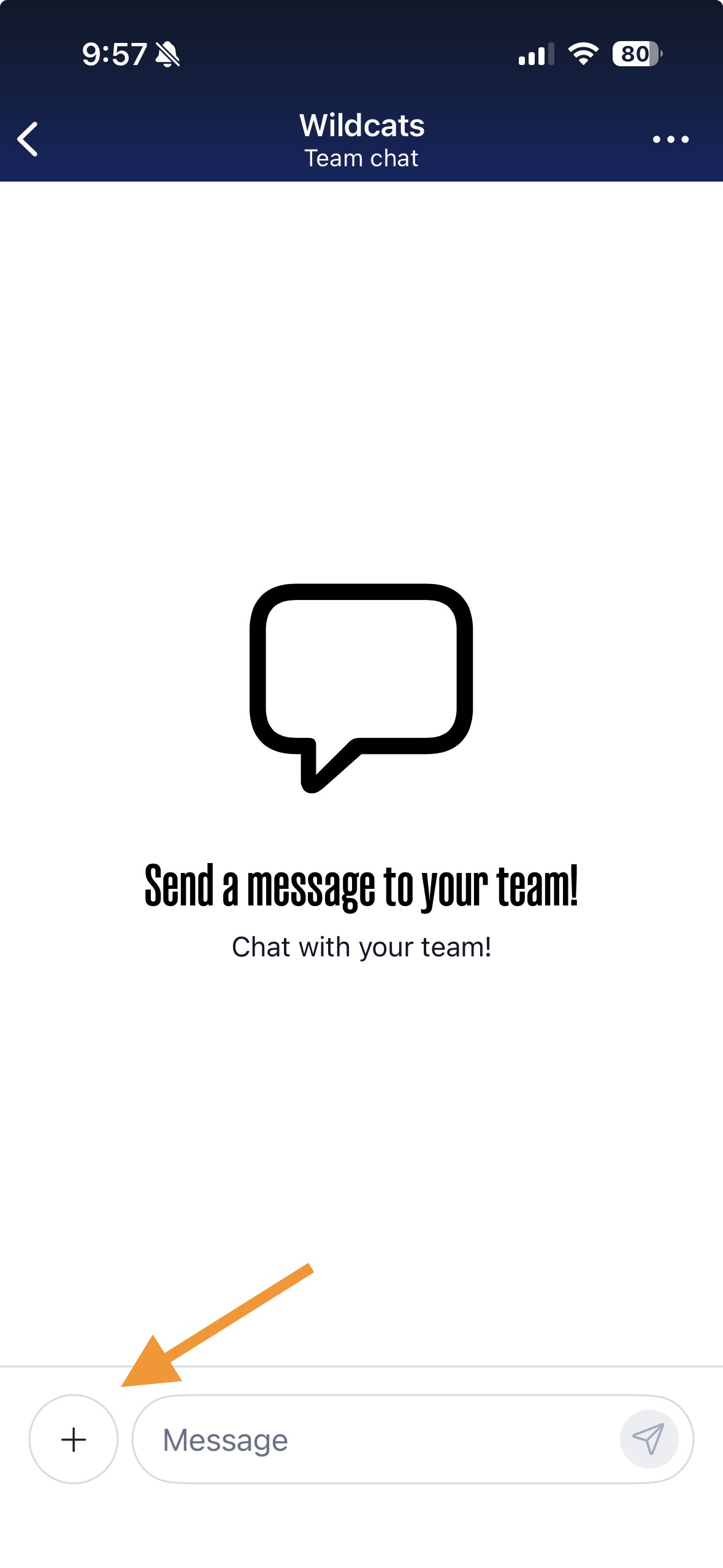
- Select the Type of Attachment:
- Photo/Video: Allows you to select images or video clips from your device's gallery.
- Take Photo/Video: Opens your device's camera to capture a new photo or video instantly.
- Document/File: Lets you browse and attach files from your device's storage (e.g., PDFs, spreadsheets, word documents).
- Create a Poll: Give you the ability to create a poll within the team chat
- Select the desired file(s) from your device's storage, or capture your media using the camera
- Once selected, the attachment will often appear in the message input area, or you'll see a preview
- You can typically add a message to accompany your attachment in the input box
- Click the Send button
Supported File Types for Attachments
TeamSnap ONE supports a variety of file types to ensure you can share diverse content with your team.
| File Extension |
iOS |
Android |
| Audio |
|
|
| MP3 | Not Supported | Supported |
| WAV | Not Supported | Supported |
| M4A | Not Supported | Supported |
| FLAC | Not Supported | Supported |
| AAC | Not Supported | Supported |
| OGG | Not Supported | Supported |
| Image |
|
|
| HEIC | Supported | Supported |
| GIF | Not Supported | Not Supported |
| JPEG | Supported | Supported |
| JPG | Supported | Supported |
| PNG | Supported | Supported |
| TIFF | Supported | Not Supported |
| BMP | Supported | Supported |
| Video |
|
|
| MP4 | Supported | Supported |
| WEBM | Not Supported | Supported |
| MOV | Supported | Supported |
| HEVC | Supported | Supported |
| File |
|
|
| DOC | Supported | Supported |
| DOCX | Supported | Supported |
| Supported | Supported | |
| PPT | Supported | Supported |
| PPTX | Supported | Supported |
| TXT | Supported | Supported |
| XLS | Supported | Supported |
| XLSX | Supported | Supported |
Please Note: File size limits may apply to attachments. If you encounter issues sending a very large file, consider compressing it or sharing it via a cloud storage link (like Google Drive or Dropbox) in the conversation instead.