
Creating Games, Practices or any other event in TeamSnap ONE
As a staff member in TeamSnap ONE, you can create and manage team events, including games, practices, and other activities. Keeping your team's schedule up to date helps players, parents, and fellow staff members stay informed about upcoming events.
Who Can Create Events? Only team staff members with the appropriate permissions—such as coaches, managers, or administrators can create events. Parents and players cannot create events unless they have also been assigned a staff role on the team.
How to Create an Event
- Log In to the TeamSnap ONE App
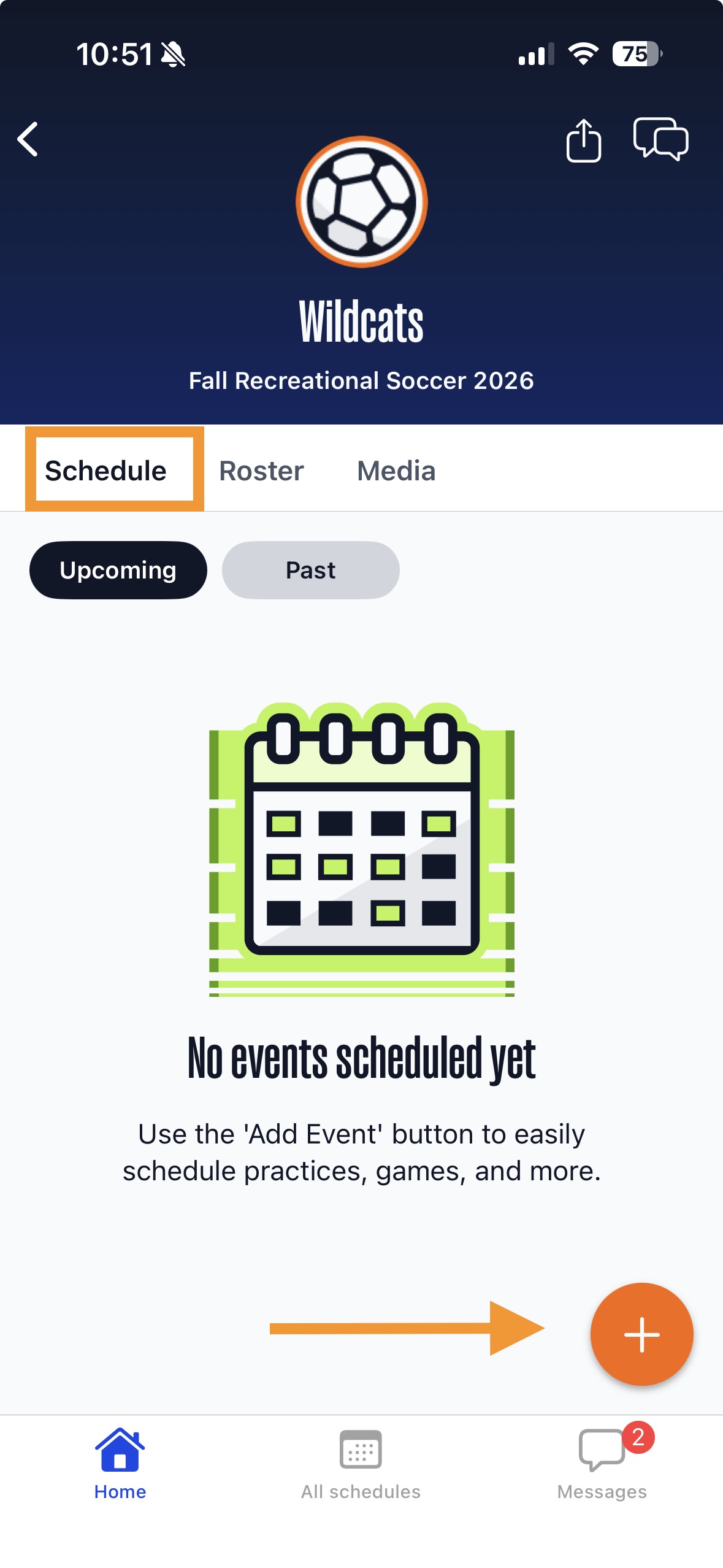
- From your Home screen, tap on the Specific Team for which you want to add an event
- Look for a prominent Orange + Button located in the bottom right corner of that screen
- Click the Orange + Button to begin the event creation process
- Pay close attention to fields marked with a Red Asterisk (*). These are mandatory and must be filled out before you can save the event.
- Event Type: Select whether it's a Game, Practice, or Other Event.
- Name (only for 'Other' events): A descriptive name for the event (e.g., "Birthday party", "Team Pizza Party", etc).
- Date: The date the event will take place.
- Other Fields:
- Location:
- You can select an Existing Location from your team's saved venues.
- To create a New location, tap the Orange + Button in the Bottom Right Corner of the locations screen. You'll then be able to enter details for the new venue.
- Event Details: Use this section as an outlet to write any Notes or Additional Information about the event. This can be seen by everyone associated with the event.
- Location:
- Save Your Event
- After saving, you will be prompted with an option to Notify your Team
- You can add an Optional Message to accompany the notification, providing context or additional instructions for your team members.
After saving and optionally notifying your team, the new event will appear on your team's schedule, and team members will receive notifications according to their settings, keeping everyone informed and ready for action!