
How to check your XbotGo Falcon camera's firmware version
Your XbotGo Falcon camera runs on firmware — the software on the camera itself — and knowing which version you're on is useful when you're troubleshooting or working with TeamSnap support. You can find your camera's firmware version right in TeamSnap ONE, along with its Device ID and battery level. Your camera needs to be powered on, nearby, and connected before this information appears.
Before you start: Turn on your XbotGo Falcon and keep it close to your phone. If you're connecting for the first time, make sure your phone is on the Wi-Fi network you want the camera to use.
- Open TeamSnap ONE and tap your profile icon in the top-right corner of the Home screen.
- Under Live stream, tap Your XbotGo cameras.
- TeamSnap searches for nearby Falcon cameras. If your camera isn't connected yet, tap Connect next to its name.
-
If prompted, select your Wi-Fi network and enter its password, then tap Connect. Leave the password field blank if your network doesn't have one.
Note: Your camera and your phone must be on the same Wi-Fi network.
- When you see Camera connected, tap Continue.
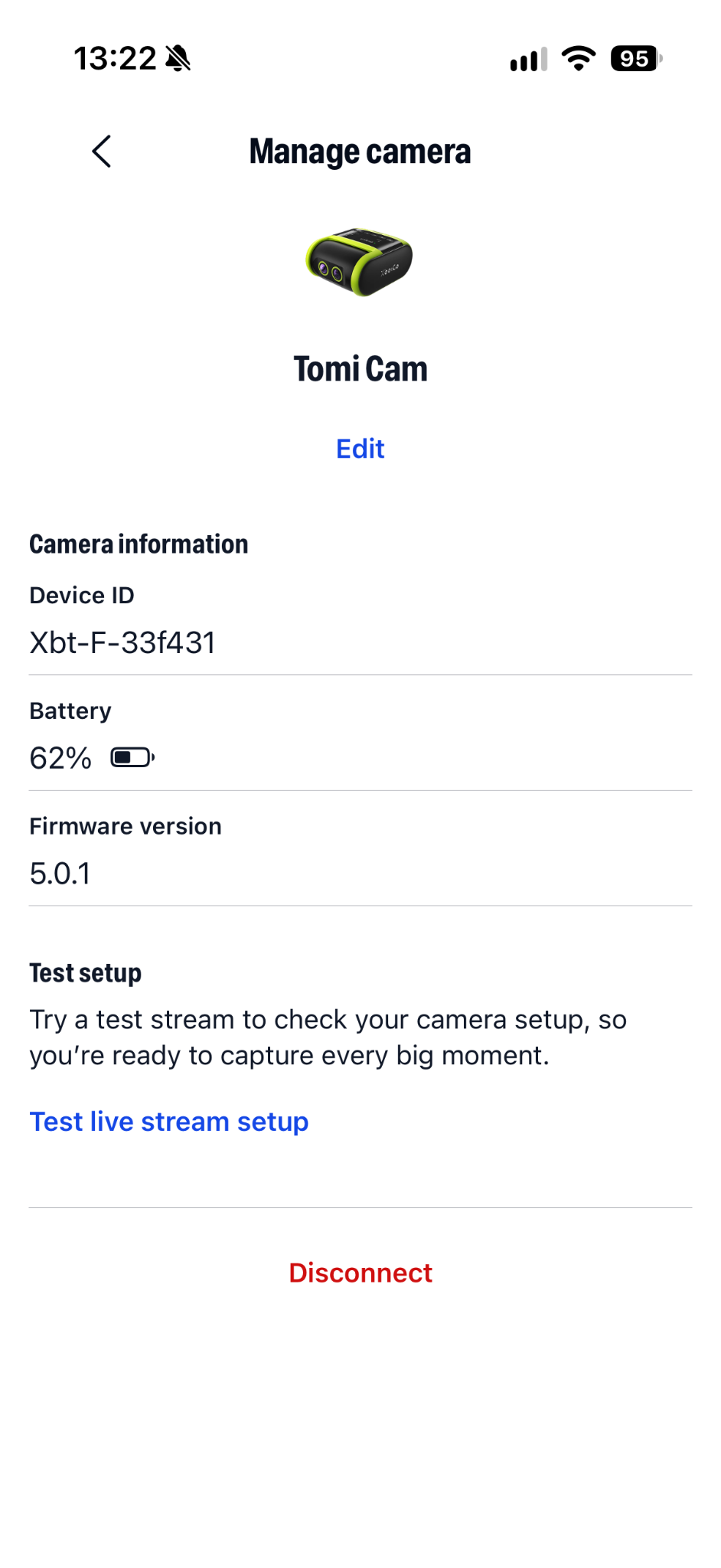
- Tap your camera's name to open the Manage camera screen.
Your camera's firmware version appears under Camera information, along with its Device ID and battery level.
Tip: If you're reporting a problem to support, you don't need to look this up first. Tap Report an issue on the Your XbotGo cameras screen, and your camera details, including the firmware version, are sent to us automatically.