
How to view your team’s email archives in the TeamSnap ONE app
When your coach or team manager sends a team email in TeamSnap ONE, it arrives in your regular email inbox — and it's also saved for you to view from the TeamSnap ONE app. That means you can pull up any email your team staff has sent without digging through your inbox, which comes in handy when a message gets buried, goes to spam, or you deleted it and now need to find it.
Find your team's emails
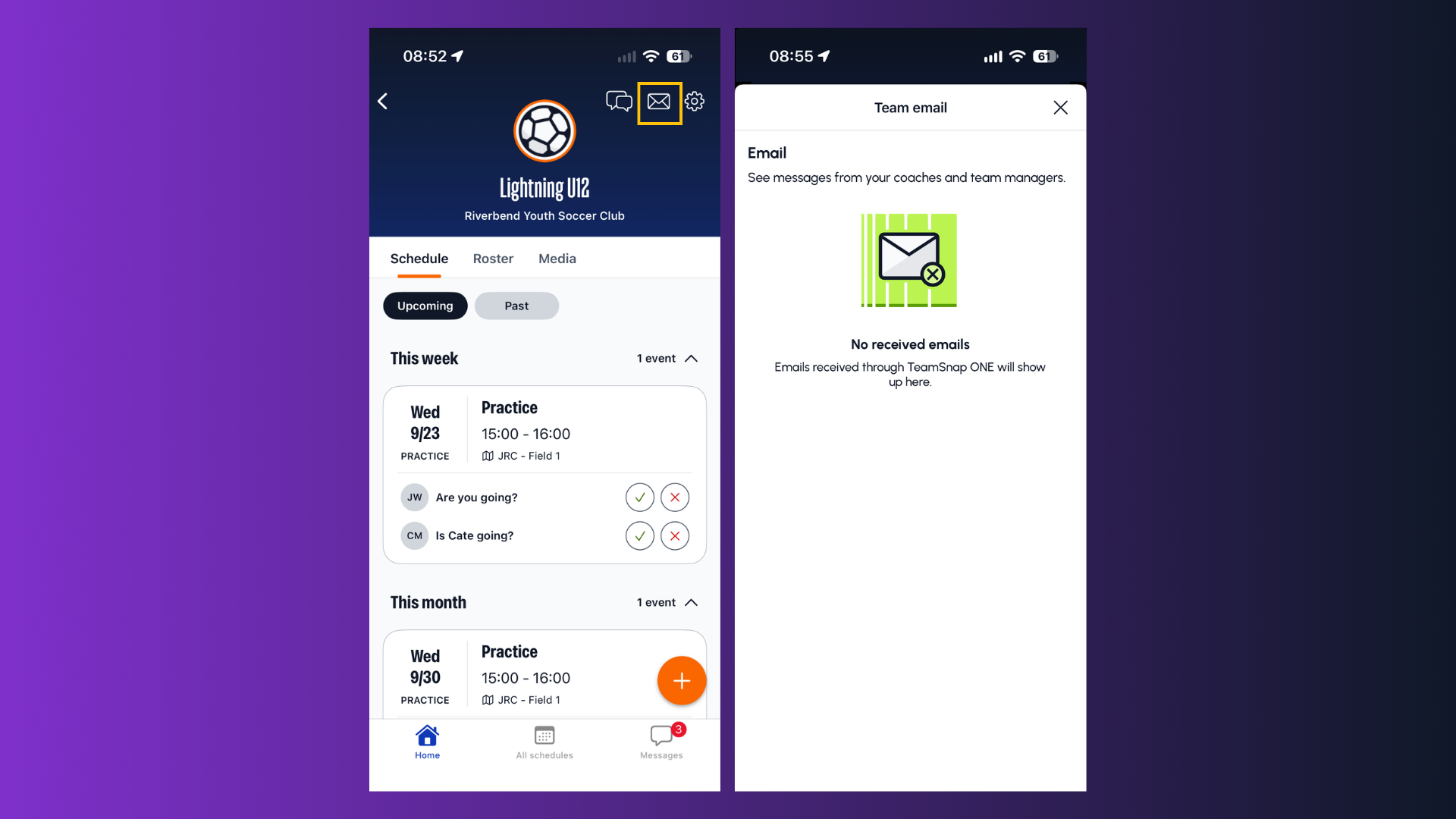
- Open the TeamSnap ONE app and select your team on the Home tab.
- Tap the email icon at the top of the screen on your Schedule, Roster, or Media tab.
- Your emails will display newest to oldest. Tap on any email to read the full message.
Note: You'll only see emails that were sent to you. If a coach emailed a few specific people and you weren't one of them, that message won't appear here.
If your team's emails are missing
Ensure you’re not looking for an email from your organization. This is a team-specific view and you can expect to only see emails from your coaches. Emails sent from the larger organization will not be populated here.
Nothing is there at all. Your staff may not have sent any team emails yet. Coaches often use team chat for day-to-day updates and save email for longer announcements, so an empty list isn't unusual early in a season.
You're expecting an email a teammate received. Check with your coach or team manager — they can see who a message went to and resend it.
Replying to a team email
TeamSnap keeps an archive of email messages from team staff, but you should reply to emails in your regular inbox.