
How to email your TeamSnap ONE team from the web
With TeamSnap ONE’s web tools, team staff can send emails to everyone on your team or select members of your team, save drafts for later, and preview emails before sending them.
Send an email to your team
- Log in at identity.teamsnap.com and click on your team.
- Click on the email tab in the top navigation menu
- Click on the compose email button
- Choose the recipients of your email.
- You can choose to email the full team or individual recipient(s).
- Write your message.
- Click Send.
- If you're not ready to send it yet, you can save it as a draft.

Who receives your email?
Your email goes to contacts on your roster who have created their account and joined the team. Any contacts that haven't accepted their invitation to the team yet won't receive team emails.
If a contact is missing your messages, this is the first thing to check.
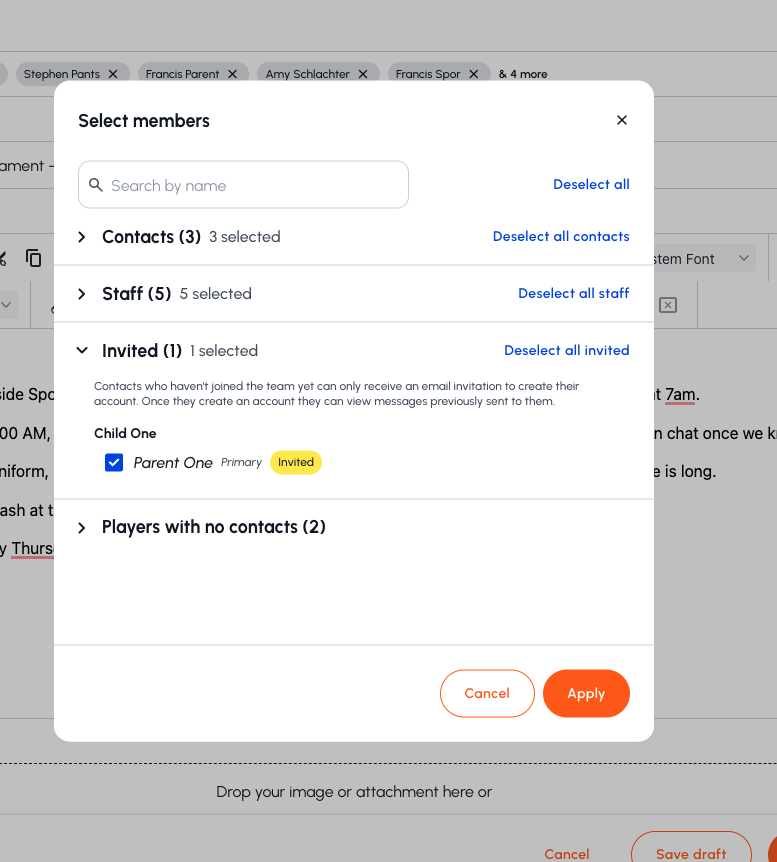
Note for Staff members: When you are choosing who to send an email to, you’ll be able to see who's been invited but is yet to join the roster. You can resend these contacts your team invite code or a link to join the team by following the instructions here.
These contacts will receive an email invitation to create their account. Only after they have done so will they be able to see the messages previously sent to them.
If someone says they didn't get your email
Work through these in order:
- Check whether they've accepted their invitation. A pending member won't receive email.
- Resend the invitation or team code, if needed. Instructions here
- Check the email address on their roster entry. A typo in an address is a common culprit.
- Ask them to check spam or a promotions folder.
If none of that explains it, contact TeamSnap support.