
How to chat with your TeamSnap ONE team from the web
With TeamSnap ONE’s web tools, you can send and view custom group or whole team chats or DMs to members of your team.
Chat is available to everyone on the team. Team staff and contacts can all read and send messages.
One major difference from the TeamSnap ONE app is that web is scoped to one team. When you open a team and go to the chat section on the top menu, you’ll see DMs and custom group chats associated with that team only. This means if you're on multiple teams, you won't be scrolling through a mixed list trying to work out which conversations belong to which roster.
Read and send messages
- Log in at identity.teamsnap.com and click on your team.
- Click on the chat tab in the top navigation menu.
- You will see your active chats for this team.
- Below your active chats, you will see a start new chat button
- Once you click this button, you can choose who you want to message
- To create a custom group, select all the team members you want included
- Or send a DM to a single team member.
- Once the chat is created, you can send a message.
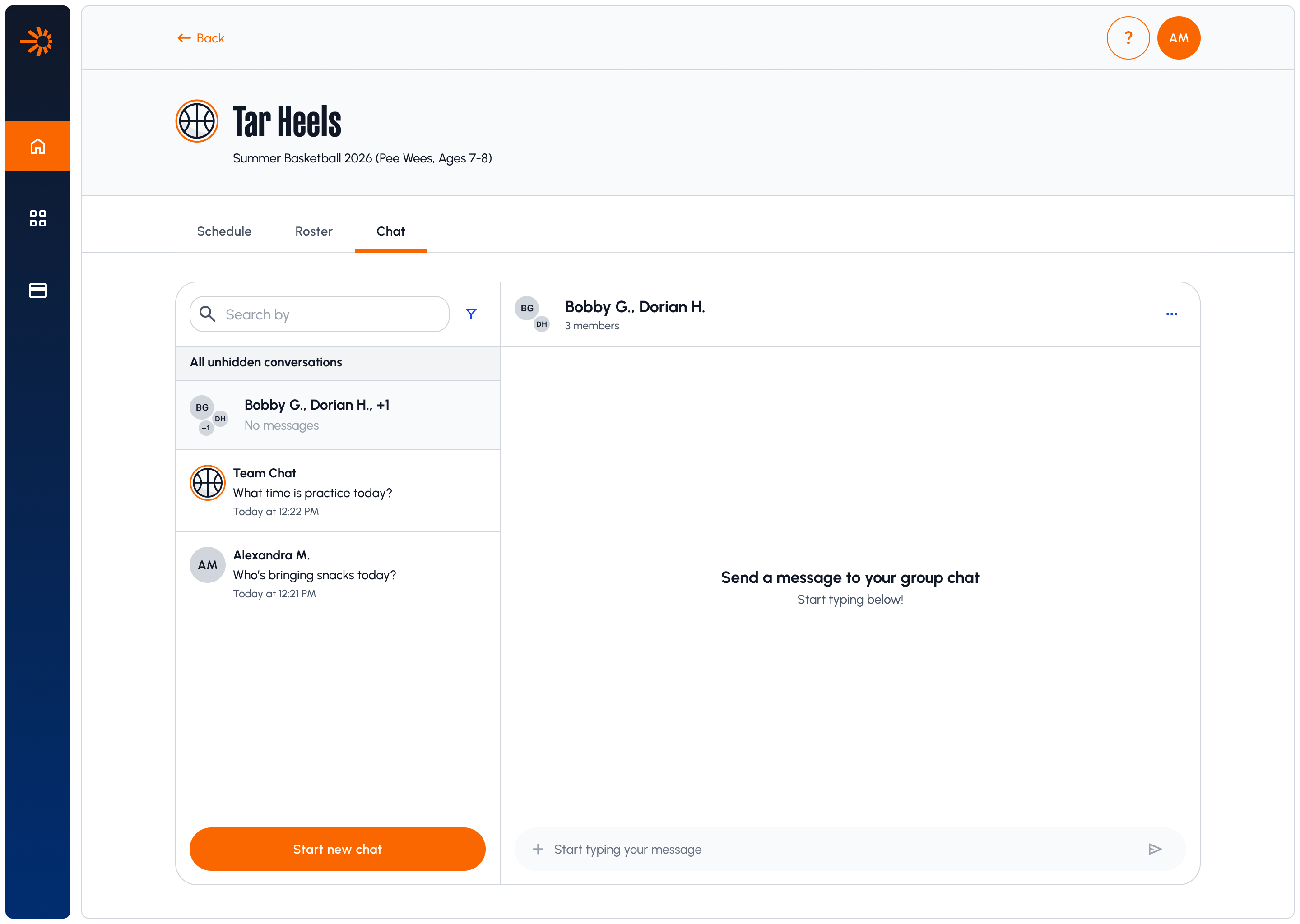
Note: Messages you send always go to the team you currently have open. If you're staff on more than one team, it's worth a glance at the team name before you send.
If you’re a coach or contact on multiple teams, you’ll need to switch to the correct team to see all chats associated with that team.
Note: Organization administrators are not able to be contacted via the app or chat unless they are on the team roster