
How to volunteer for a task and find tasks you’ve signed up for
Every game, practice, and event in TeamSnap ONE can include a list of tasks — the handful of things that keep the day running smoothly for everyone.
Running the clock. Keeping score. Bringing snacks. Live streaming the game for the grandparents who couldn't make it. Your coach or team manager puts the list together, and you claim whatever you can cover.
It takes one tap for contacts to see what the team still needs and pick how they’d like to contribute.
Sign up from an event
- Open TeamSnap ONE app
- From your home screen, select your team or go to the “All Schedules” tab
- Select the relevant event
- Tap the Tasks tab.
- Find the task you want to cover. Tasks with open spots show how many more people are needed.
- Tap Sign up.

Your name appears in the spot right away, and the task moves into your My tasks section on the event.
Note: TeamSnap ONE doesn't email you when you sign yourself up — you already know. You'll only get an email if a coach or team manager assigns you to a spot, or if something about your task changes.
Sign up from team chat
When spots are still open, TeamSnap posts a reminder to your team chat 5 days before the event and again 24 hours before. Tap the card in chat to go straight to the task list for that event, then follow the steps above.
Once every spot is filled, the reminders stop.

GOOD TO KNOW
Signing up covers one event, not the season. Some tasks are set up to repeat across every game or practice. Signing up for one of them covers that event only. If you want to cover it again next week, sign up again for that event.
A task can need more than one person. If a task has multiple volunteer spots, you'll see how many are still open. Signing up fills one of them.
Removing yourself from a task you’d signed up for
If your plans change, you can take yourself off a task you've signed up for right from the event — no need to message your coach. Your spot reopens immediately so someone else on the team can claim it.
- Open TeamSnap ONE and go to Schedule.
- Select the relevant event.
- Tap the Tasks tab.
- Find the task under My tasks.
- Tap the task to open its details.
- Tap Remove me.
- Confirm if prompted.

Your name comes off the task right away, the spot shows as open again, and it drops off your My tasks list. If the task still needs people and the event's coming up, TeamSnap ONE's usual "Volunteers needed" reminders (5 days out, 24 hours out) can pick back up in team chat — same as any other open spot.
GOOD TO KNOW
- You can sign back up. As long as the spot's still open before the event, you can re-add yourself the same way you signed up the first time.
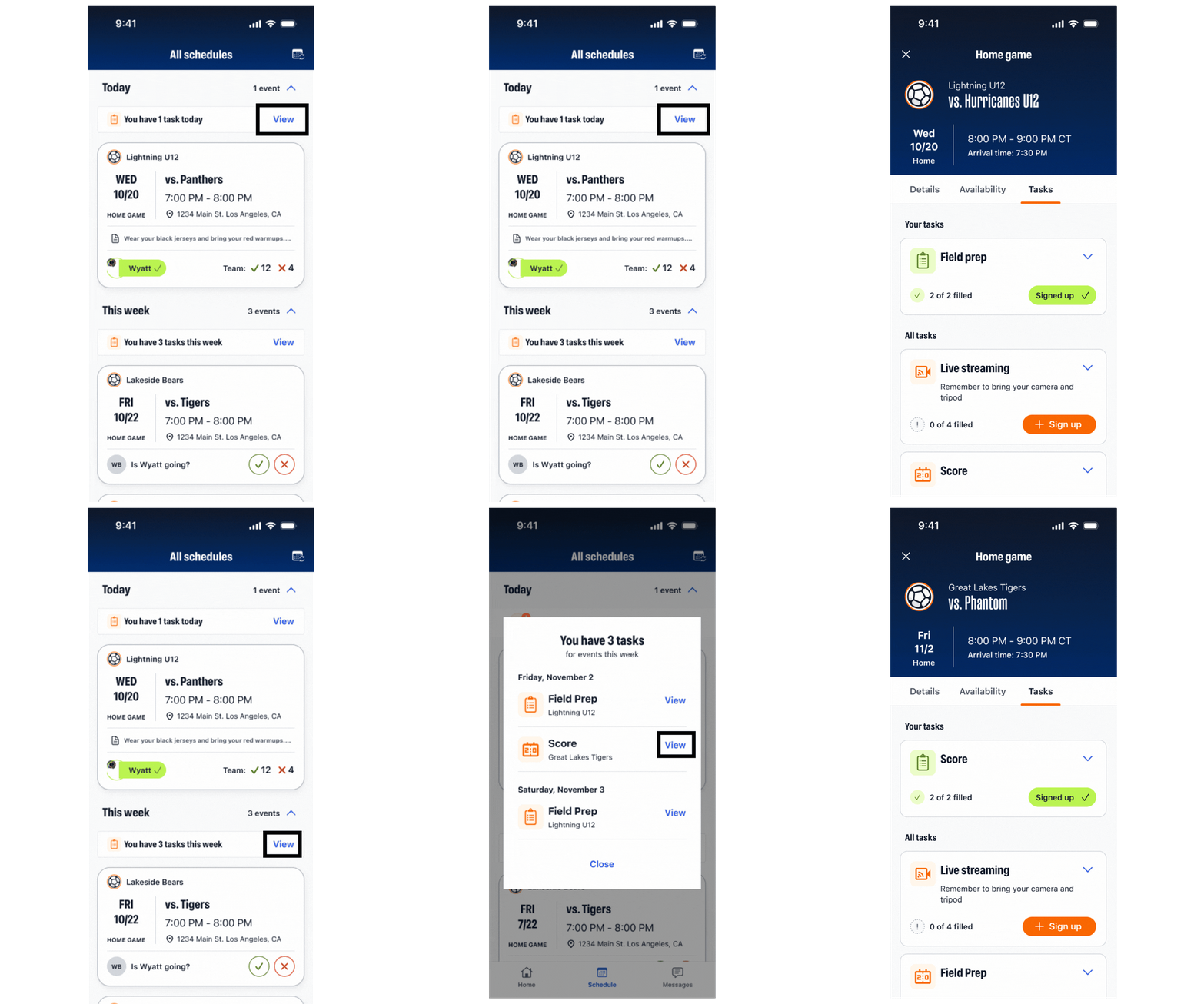
Finding the tasks you're signed up for
Once you've signed up for a task — or a coach has assigned you one — TeamSnap ONE keeps it in two places: on the specific event itself and on your schedule next to your games and practices.
This works the same whether you signed up yourself or your coach assigned you.
See everything coming up
- Open TeamSnap ONE and go to your team.
- From your home screen, select the “All Schedules” tab
- Your tasks appear alongside your games, practices, and events, grouped by today and this week.
- Tap View on a task to see what it is, which team it's for, and what day.
- If you click on any event, you can also see any tasks you have for that specific event
If you were assigned rather than signed up
When a coach or team manager assigns you to a task, TeamSnap ONE emails you with the task, the event, and who assigned you. You'll also get a reminder email 24 hours before the event, whether you signed up yourself or someone assigned you.
If you can't find a task you expected
Check you're on the right team. If you're in TeamSnap ONE for more than one team, tasks live under the team that owns the event. Switch teams and check the schedule again.
Check that the event still exists. If a game or practice is cancelled, its tasks go with it. TeamSnap ONE emails you when an event you're assigned to is deleted.
Check whether you were removed. If a coach or team manager takes you off a task, TeamSnap ONE emails you. Your name comes off the task, and it no longer shows on your schedule.
You removed yourself. If you took yourself off a task earlier, it won't show under My tasks anymore.
Events without a start time behave differently. An event still marked TBD appears on your schedule grouped by day, but it doesn't trigger task reminders until a time is set.